 Exhibition
Toolkit by PeakYou
Create your exhibition
Your exhibition starts here.
Upload your students' work — art, design, science, photography, models — and bring your exhibition to life.
- Gather
- Curate
- Share
Drag and drop student work here
or
JPEG, PNG or HEIC · Up to 35 artworks · Max 25MB each
Your exhibition
Build your exhibition
Pick how visitors will experience the work. Every workspace uses the same artworks, so you can offer more than one.
Exhibition styles
Add an artwork to open the 3D room.
Visitors first see a welcome page with your exhibition title and the Welcome message from Launch Page Settings, then step inside. Individual frames can still be changed per artwork in Curate once inside.
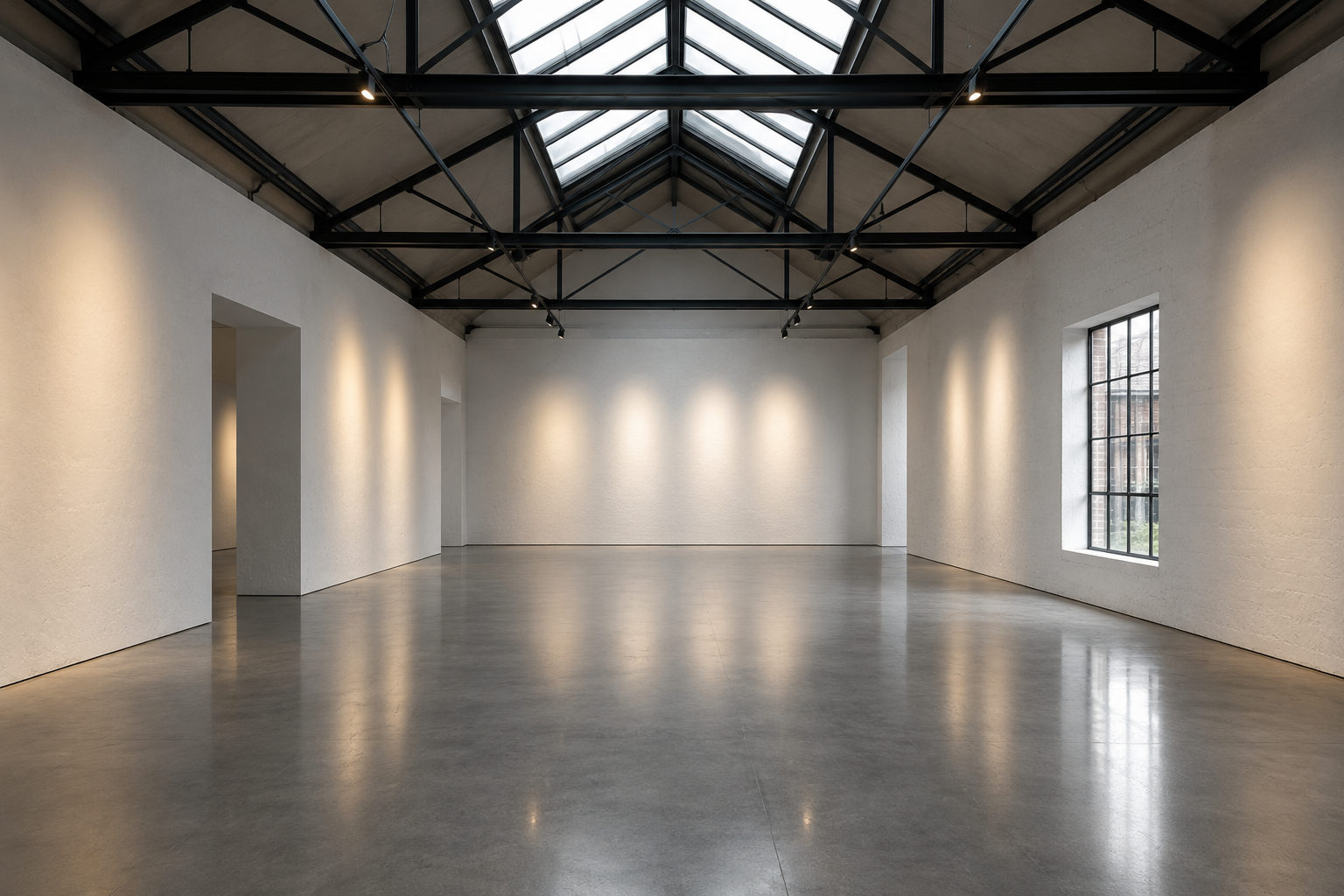
Choose your space: the Gallery Hall — a formal museum room with a central display wall (fits 36 artworks) — the Classroom Gallery — timber floor, bunting and colourful partitions (35) — or the Garden Gallery — a glass-roofed garden room with sage partitions and plants (35) — or the Modern Gallery — an intimate white-walled room with a skylight, sized for a focused show of 10. Either way your artworks are hung automatically; drag to look, walk with the arrow keys or on-screen controls, and select any artwork to read its label. Switch to Curate inside to rearrange, reframe, or download a stand-alone visitor page.
Add an artwork to view the image carousel.
Cover design
Add an artwork to open the exhibition.
What are you exhibiting?
Sets how the exhibition introduces itself to visitors — the toolkit exhibits any student work, not just art.
Wall Captions
What appears beside each artwork on the wall.
Untick both and artworks display larger, with no caption. The artist statement is never printed on the wall — it opens on click, so the caption stays a predictable size and the artwork always hangs clear of the room.
Artwork framing
How each artwork hangs. Framing is decorative only — the uploaded files are never changed, and no artwork is ever cropped.
Artwork Statement on Click
Let visitors open an artwork larger, with its full statement beside it.
Off makes the artworks purely a slideshow — nothing is clickable and no statement is deleted.
Exhibition Space
The room your artworks hang in after Start Exploring.
Background
The background visitors see before entering.
Support for your exhibition
Class Vocabulary Check — Review vocabulary across all artist statements.
Rubrics & Marking — Build a NSW Visual Arts rubric (or use your own), record your judgements, export results.
Tip: drag the thumbnails to reorder them — this sets the order in the gallery, catalogue and flipbook.